Published on: • Last Updated:
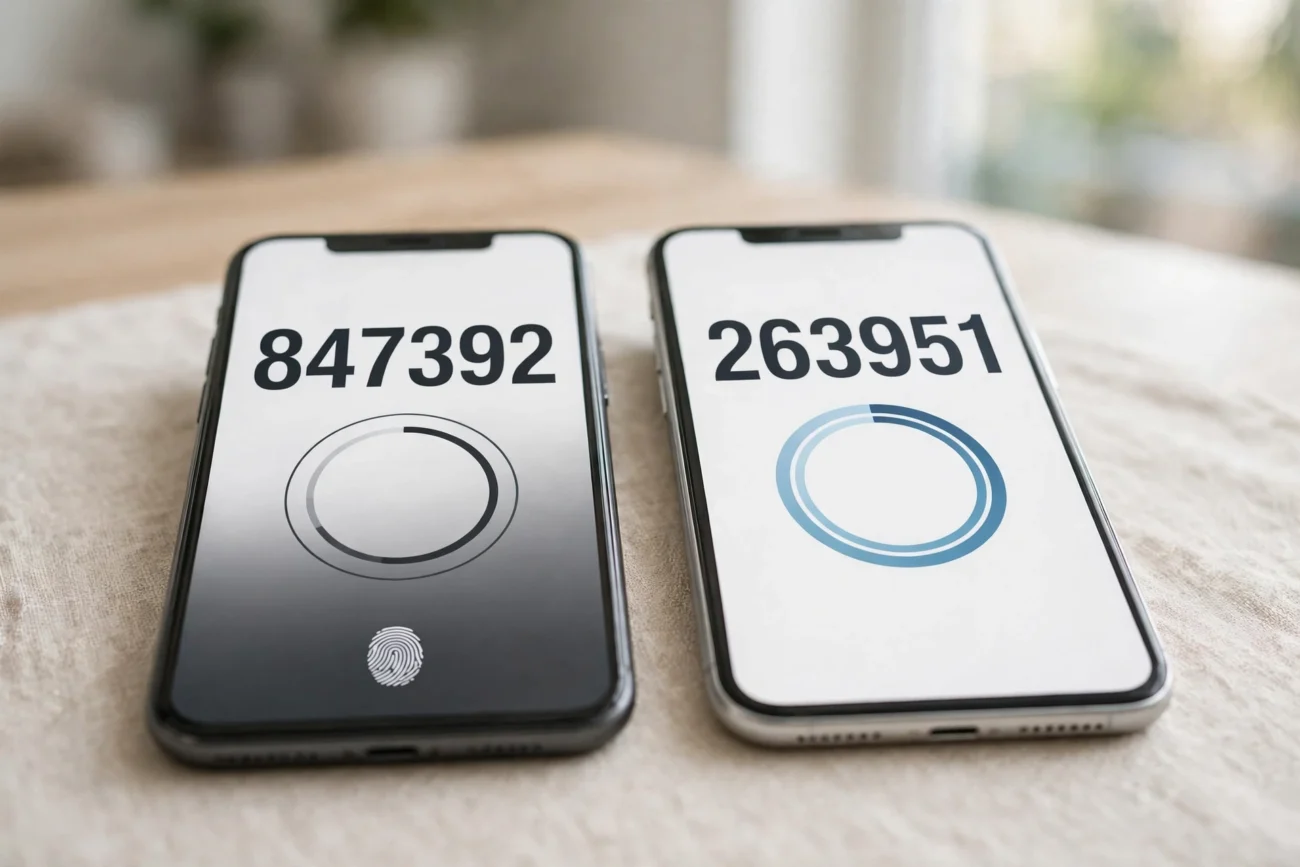
Short answer: for a small team that mixes iPhones and Android phones, Google Authenticator is the safer default — its codes sync to a Google Account and follow you to any new phone, whatever phone that is. Microsoft Authenticator is the better fit if your team lives in Microsoft 365 and uses push approvals and passwordless sign-in every day. But plan for re-registering work accounts every time someone changes phones, because Microsoft does not back those up. The difference that decides it is not the code on the screen — both apps show a six-digit code that changes every 30 seconds. It is what happens when the phone is lost.
Two-factor authentication is the cheapest security upgrade a small team can make: no text messages to intercept, no hardware key to buy, just a free app and a code that changes every half minute. The choice between the two looks like a coin toss — both are free, both do the same job on the surface — until someone’s phone breaks. Then the two apps behave very differently, and that difference is the whole decision.
How this guide was checked — and what it is not
Every claim below comes from Google’s or Microsoft’s own support pages, read on 17 November 2026 and cited where it matters. We did not install either app on a test phone for this guide: this run had no phone to install on, and installing an authenticator on a real account is not a step to improvise — a wrong move there locks a person out of their own accounts. So there are no setup times or screenshots from a live install here, and this guide says so rather than pretending otherwise. What the vendor pages do settle, clearly and in writing, is the part that actually decides this choice for a team: backup, restore, export, and what happens when a phone is lost.
How an authenticator app actually works
Both apps do the same core job. When you turn on two-factor authentication for a site, the site shows you a QR code or a secret key, and you scan it into the app once. From then on, the app generates a six-digit code from that secret and the current time, and the code changes every 30 seconds. The site knows the same secret, so it can check the code you type without ever talking to your phone. That is why the codes work offline: nothing needs a signal, because the code is computed on the phone from a secret it already holds. Lose the secret — lose the phone without a backup — and the app cannot regenerate it, which is why the backup story matters more than the app’s interface.
One more distinction is worth knowing. Microsoft Authenticator also does push approval — tap “Approve” on a notification instead of typing a code — and passwordless sign-in, where the app itself becomes the sign-in. Both need a connection. Google Authenticator does neither; it shows codes, and that is all it does.
Google Authenticator: what Google’s own pages say
Google Authenticator is free on iOS and Android, with no paid tier and no card at install. Its job is deliberately small: generate one-time codes. Google’s support page states plainly that “you can still generate codes without an internet connection or mobile service” — the offline guarantee a team wants before relying on the app in a basement office or on a flight.
The feature that decides this comparison is sync. Sign in to a Google Account inside the app and your codes sync across all your devices, encrypted in transit and at rest. The requirement is a recent app version: 6.0 or above on Android, 4.0 or above on iOS. Sign in on a new phone and the codes arrive with the account — no old phone needed, no same-platform rule, no re-scanning every site. For a team where one person uses an iPhone and the next uses Android, that is the practical difference: the codes are tied to an account, not to a piece of hardware.
There are two catches. First, you can also use the app without a Google Account, but then the codes live on that device only, with no backup at all. If the phone dies, the codes die with it, and the recovery is visiting every site to remove the old authenticator and link a new one. Second, even with sync, the manual transfer path still needs the old phone to create a QR code for the new one — so sync is the safety net, and without it you are back to the old-phone problem.
Two smaller details are worth a team’s attention. The app has a Privacy Screen setting that demands a PIN, pattern or biometric check before it opens — turn it on, because a code list on an unlocked phone is a security hole. And setting up Authenticator for a Google Account can take up to 7 days before it shows as an available sign-in option, unless you already have a trusted passkey or security key. Google also nudges you towards passkeys as an additional step — and if you are weighing the two, our guide to passkeys for a small team covers the same decision from the other side.
Microsoft Authenticator: what Microsoft’s own pages say
Microsoft Authenticator is also free on iOS and Android, with no paid tier. Its one-time codes refresh every 30 seconds and, like Google’s, are generated on the phone from a stored secret, so they keep working without a signal. Where it differs is everything around the codes: it also does push approvals for Microsoft accounts, passwordless sign-in, and it can store passwords for autofill. For a team already on Microsoft 365, those extras are the reason to pick it — approving a sign-in with one tap beats typing a six-digit code several times a day.
The backup story is where Microsoft is weaker, and Microsoft says so in its own documentation. Backup and restore work only on the same device type: an iPhone backup cannot restore to an Android phone, and an Android backup cannot restore to an iPhone. On iOS the backup runs through iCloud Drive, iCloud Keychain and iCloud Backup; on Android it runs through a personal Microsoft account with cloud backup turned on. Switch platforms and the backup is useless — you re-set up two-factor authentication on every site, one by one.
The bigger catch is work accounts. Microsoft’s restore page is blunt: “Work or school account credentials are not backed up. Only the account name is restored, and you must sign in and register the account again on your new device.” The same applies to passwordless sign-in: the credential is not backed up, only the name. What does restore is personal Microsoft accounts and third-party accounts — LinkedIn, Facebook and the like — whose one-time codes come back after a restore. So for a team whose Microsoft 365 work accounts are the whole point, the backup covers everything except the accounts that matter most. Microsoft’s own advice is to keep the old device available until the work accounts are signed in and registered again on the new one.
There is also no way out through export. Microsoft’s own Q&A answer states that the app “currently does not support exporting all Authenticator data, such as MFA accounts, verification codes, or work/school sign-in methods, into a file” — the supported way to move is the built-in backup and restore, on the same platform. Only saved passwords can be exported, and Microsoft warns the exported file is no longer encrypted, so it should be imported and then deleted. One dated note: Microsoft says Android backup moves to Google One backup from January 2027; as of November 2026 the current path is still the personal Microsoft account.
Google Authenticator vs Microsoft Authenticator: the side-by-side table
| Point | Google Authenticator | Microsoft Authenticator |
|---|---|---|
| Price | Free, no paid tier | Free, no paid tier |
| Offline codes | Yes — codes work with no internet or mobile service | Yes — codes are generated on the phone; push approvals need a connection |
| Code sync / backup | Syncs to a Google Account, across any device type | Cloud backup, same device type only (iOS to iOS, Android to Android) |
| Work accounts on restore | Codes sync with the account like any other code | Not backed up — name only; sign in and register again |
| Export to a file | No export; manual QR transfer needs the old phone | No export of authenticator accounts; only saved passwords export |
| Push approval | No | Yes, for Microsoft accounts |
| Passwordless sign-in | No (Google suggests passkeys as a separate step) | Yes, for Microsoft accounts — but not backed up |
| App lock | Privacy Screen: PIN, pattern or biometric | App lock with biometric or PIN |
| Lost phone, synced / backed up | Sign in on a new phone; or remove the device from the Google Account | Restore on the same device type; work accounts re-registered by hand |
| Lost phone, no backup | Visit every site, remove the codes, relink a new device | Visit every site, remove the codes, relink a new device |
The portability gap is the decision
Read the table as a story about one bad day: a team member’s phone is stolen on a Friday evening. With Google Authenticator and sync switched on, the fix is signing in to the Google Account on the replacement phone — the codes arrive, the weekend is saved. With Microsoft Authenticator, the fix depends on two things you may not control: whether the replacement is the same platform, and whether the accounts are personal or work accounts. Same iPhone, personal accounts: the restore works. Switched to Android, or work accounts: the team member spends the weekend re-registering two-factor authentication site by site, and every site that only offers the authenticator as its second factor is locked until that is done.
That is not a reason to reject Microsoft Authenticator outright. If the whole team is on Microsoft 365, on the same phone platform, and the old phone is usually available when a new one arrives, the restore path works fine — and the push approvals and passwordless sign-in are genuinely nicer day to day than typing codes. But be honest about the risk you are accepting: the backup covers the easy accounts and leaves the work accounts to manual re-registration. A team that changes phones often, or mixes iPhone and Android, is taking on repeated admin work that Google’s account sync simply avoids.
One more option is worth a sentence. Independent roundups report that 2FAS and Proton Authenticator are free, open-source, and do offer export and desktop apps. We have not verified those claims against the vendors’ own pages, so treat them as a lead to check, not a recommendation.
Google Authenticator vs Microsoft Authenticator: which should your team pick?
Use the decision below, not the brand names. If you are choosing between more tools than these two, the same shortlist discipline in our guide to choosing AI tools for business applies: decide what the tool must do when something goes wrong, test that exact thing, and ignore everything behind a paywall.
Pick Google Authenticator if: the team mixes iPhone and Android; people change phones or platforms often; you want the simplest recovery story — sign in, codes arrive; or you do not use Microsoft 365 and just need codes that work. The trade-off is a plainer app: codes only, no push approval, no passwordless, no password storage. For a team that only needs codes, that plainness is a strength.
Pick Microsoft Authenticator if: the team lives in Microsoft 365; everyone signs in to Microsoft accounts several times a day and would genuinely benefit from one-tap approvals and passwordless sign-in; and the team mostly stays on one phone platform, with old phones kept until the new one is fully set up. Go in with your eyes open about the backup: work accounts are name-only on restore, and a platform switch means re-registering everything. If that sentence makes you uneasy, that unease is the answer.
Look elsewhere if: being able to export your authenticator accounts to a file is a hard requirement — neither app offers it. As an illustrative example, imagine a five-person team with ten shared logins: a platform switch under Microsoft Authenticator means up to fifty re-registrations, each needing the old phone or a backup code. Count that cost before you choose, not after.
Rolling it out to a small team
Whichever app you pick, the rollout is the same shape, and it takes under an hour for a small team. First, pick one app for everyone — a mixed estate means two backup stories to remember, and the day something breaks is the day nobody remembers which one applies to whom. Second, turn on the backup on day one: Google Account sync for Google Authenticator, cloud backup for Microsoft Authenticator. A backup switched on after the phone is lost is not a backup. Third, save recovery codes: when a site offers backup or recovery codes during two-factor setup, print them or store them somewhere that is not the phone itself — a password manager, a sealed envelope in the office, anywhere the phone is not. Those codes are the way back in when the authenticator is gone.
Fourth, keep a second method on every important account. Both vendors say the same thing in different words: enrol an additional form of verification so a lost authenticator does not lock you out. A second phone number, a security key, or a passkey all work. Fifth, run the lost-phone drill once, on purpose: one team member signs in on a spare or replacement phone and confirms the codes arrive — or discovers they do not — while the old phone is still in their hand. Finding out during a real loss is the expensive version of the same lesson. Finally, put the app choice where new starters will find it: the onboarding checklist, not a chat message. The same “free first, test it yourself” logic applies across a small team’s toolkit — our guide to AI tools for freelancers covers it for client work, and the router guide at 10.0.0.1 router login applies it to the office network.
What worked and what didn’t
What worked: both vendors document the backup and recovery behaviour clearly, in their own words, on public support pages — the Google page on sync, offline codes and lost devices, and the Microsoft pages on restore and export. Nothing in this guide rests on a roundup’s summary. Both apps are genuinely free with no card, no business email and no trial at install.
What didn’t: the on-device install test did not happen for this guide — no phone was available to this run, so the setup times, the offline-code check in airplane mode, and the backup walkthrough as actually performed are all unmeasured. The comparison therefore rests on what the vendors document, not on what we observed, and the guide says that up front. Microsoft’s Android backup change in January 2027 is also unverified by us beyond the vendor’s own note. We will update this post if a live install test shows either app behaving differently from its documentation.
Frequently asked questions
Is Google Authenticator really free?
Yes. There is no paid tier, no card at install, and no trial. The app generates codes for any site that supports authenticator-app two-factor authentication, not just Google accounts. The only cost is the discipline of turning sync on.
Do authenticator codes work without internet?
Yes. The six-digit code is computed on your phone from a secret stored on the device and the current time, so it works with no internet connection and no mobile service. Push approvals are different — they need a connection, because the approval has to travel back to the service.
Can I move Microsoft Authenticator from iPhone to Android?
Not by restoring a backup: Microsoft’s own documentation says backup and restore work only on the same device type, so an iPhone backup cannot restore to Android. The supported route is to set up two-factor authentication again on each site with the new phone, using the site’s own setup flow and your recovery codes.
What happens to my work accounts if I lose my phone?
With Microsoft Authenticator, work or school account credentials are not backed up — only the account name is restored, and you must sign in and register the account again on the new device. With Google Authenticator and sync on, the codes return when you sign in to your Google Account on the replacement phone. Either way, saved recovery codes are the fastest way back in.
Should a small team use passkeys instead of an authenticator app?
Passkeys are the stronger option where the sites you use support them — no code to type, no secret to back up in an app — and both vendors point that way. But not every site supports passkeys yet, so most teams will run both for a while: passkeys where offered, an authenticator app for everything else. Our guide to passkeys for a small team walks through that switch.
How do I run the lost-phone drill?
Pick one team member and have them sign in on a spare or replacement phone and confirm the codes arrive — or discover they do not — while the old phone is still in their hand. Finding out during a real loss is the expensive version of the same lesson. If the team uses Microsoft Authenticator, keep the old device available until the work accounts are signed in and registered again on the new one, because those accounts are name-only on restore.
Why can setting up Google Authenticator take up to 7 days?
When you set up Authenticator for a Google Account, it can take up to 7 days before it shows as an available sign-in option — unless you already have a trusted passkey or security key. Google also nudges you towards passkeys as an additional step, so if that wait matters, the passkey route is the faster one.
Conclusion
Both apps are free, both show the same six-digit code, and both will serve a small team well on an ordinary day. The choice is made on the bad day. Google Authenticator’s codes follow the account to any phone, which makes recovery a sign-in rather than a project. Microsoft Authenticator’s push approvals and passwordless sign-in are nicer to use every day, but its backup stops at the platform boundary and does not cover work accounts at all. Pick the app whose bad day you can live with, switch its backup on before you need it, save the recovery codes somewhere that is not the phone, and run the lost-phone drill once while the old phone is still in your hand.

8 thoughts on “Google Authenticator vs Microsoft Authenticator for a Small Team”